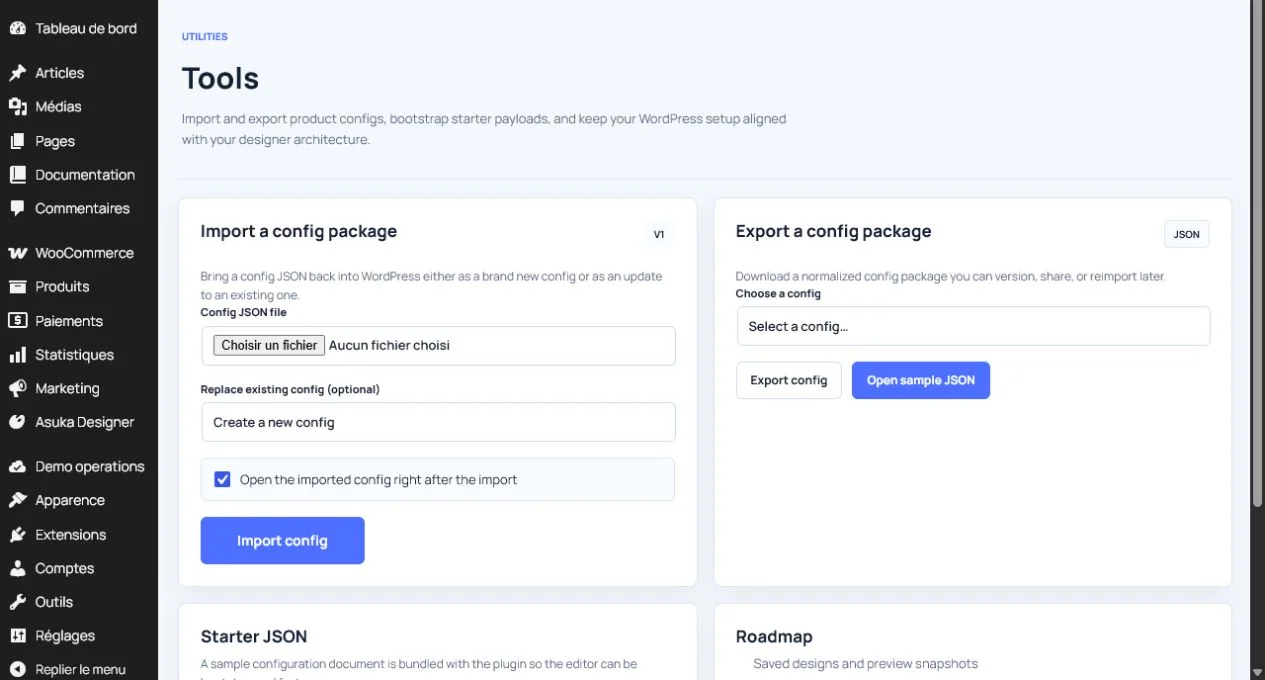
WordPress and WooCommerce
Demos and troubleshooting
Create isolated one-day administration demos and diagnose the most common integration problems.
Guide overview
Demo lifecycle
The public form creates an isolated, limited demo site and sends a secure link by email. A permanent sandbox license is applied automatically to authorized demo environments.
Demo users cannot reach the main website administration, documentation management, license overrides, or unrelated content.
First checks
If the designer is blank, verify the saved view, model URL, browser console, license diagnostics, and template permissions. If uploads fail, check the server upload limit and returned validation message.
Clear page caches only after verifying that the deployed plugin bundle version changed.
Run Settings > Diagnostics.
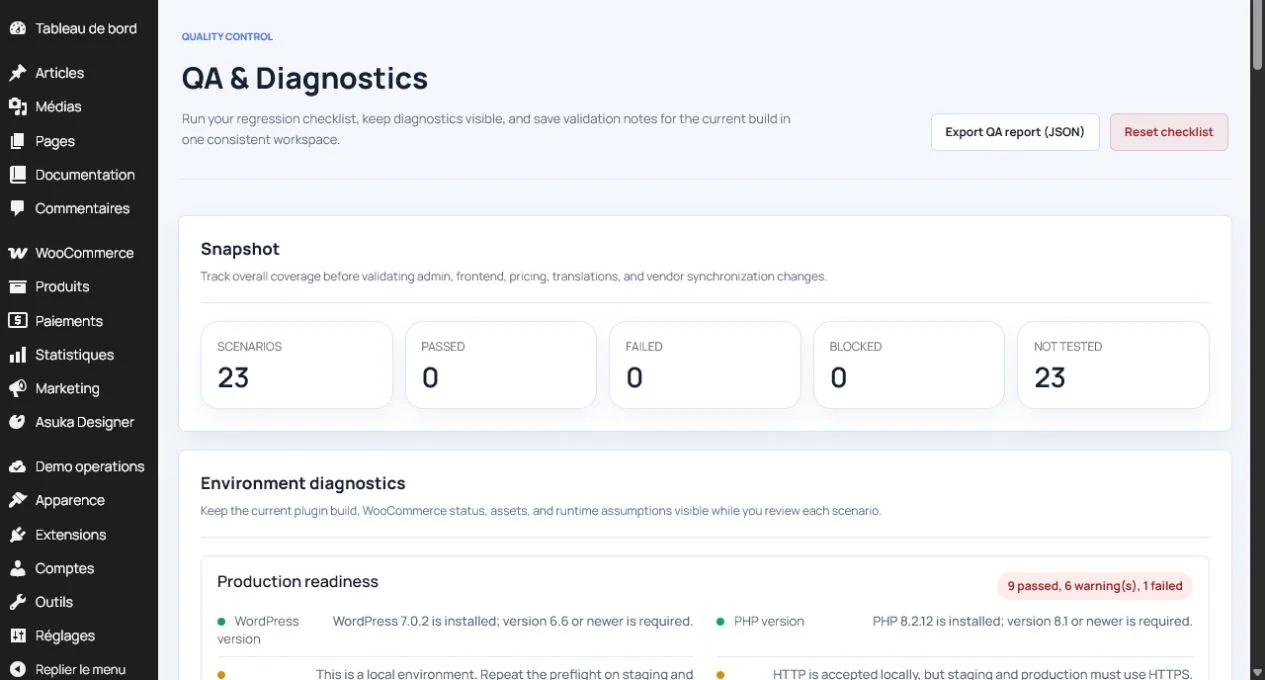
Confirm the product link.
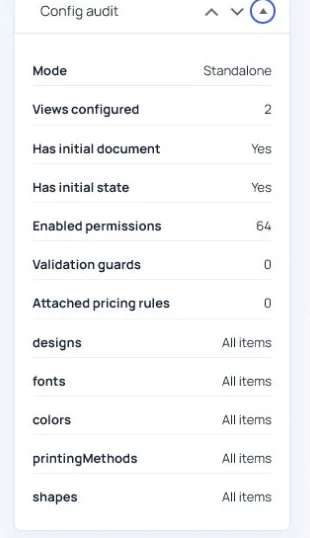
Check the runtime version.
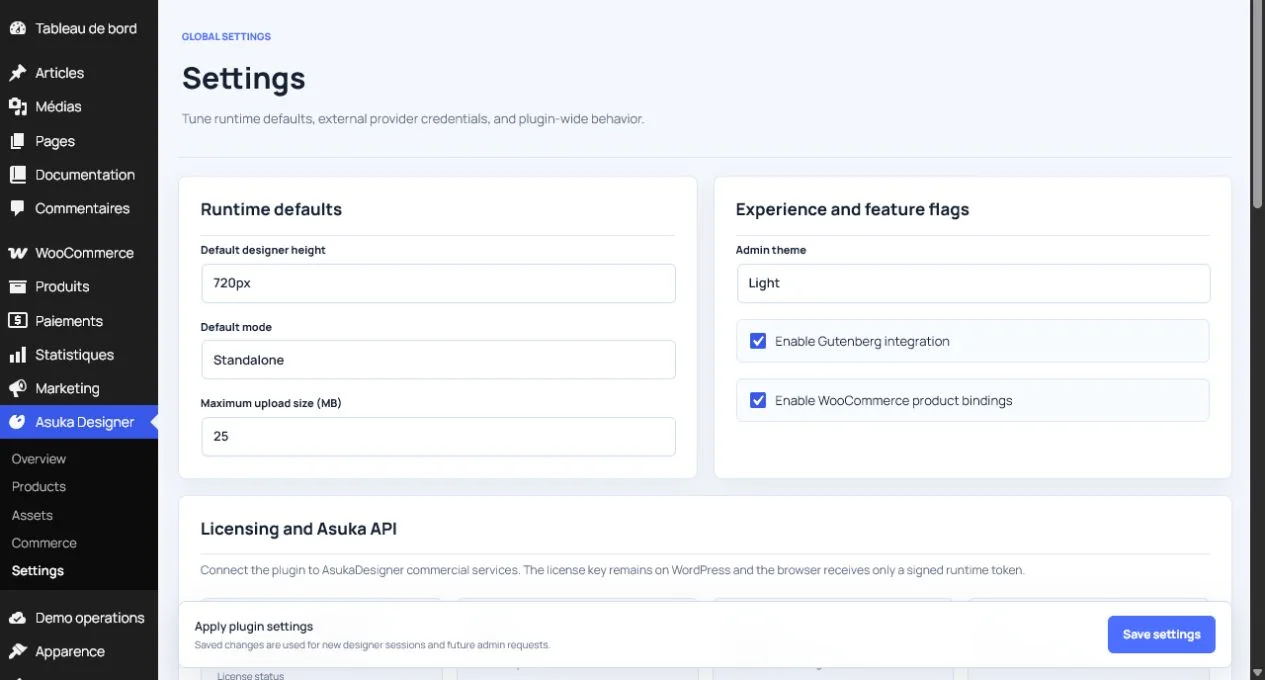
Attach diagnostics to a support ticket.