WordPress and WooCommerce
Reusable asset libraries and storefront filters
Manage designs, elements, fonts, colors, printing methods, materials, and shapes from one WordPress catalog.
Guide overview
Create reusable library items
Open Asuka Designer > Assets and choose the library type. Give each item a durable ID, customer label, category, media, optional price, and active status.
Use the dedicated editors for fonts, production colors, printing methods, materials, and configurable 2D or 3D elements.
Create or edit an item.
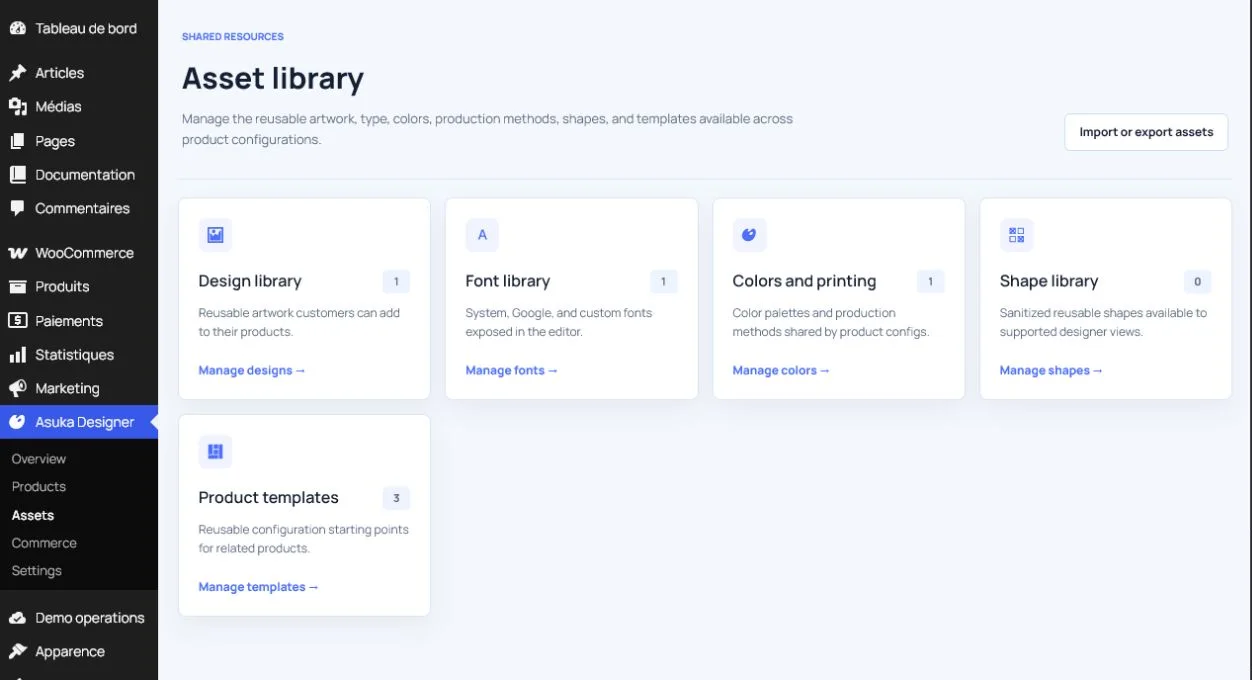
Upload or select its media.
Add a preview and useful category.
Save and confirm it in the library list.
Control what customers can browse
Storefront filters may include or exclude categories and individual items per product. The active flag controls global availability; product filters narrow that catalog without copying it.
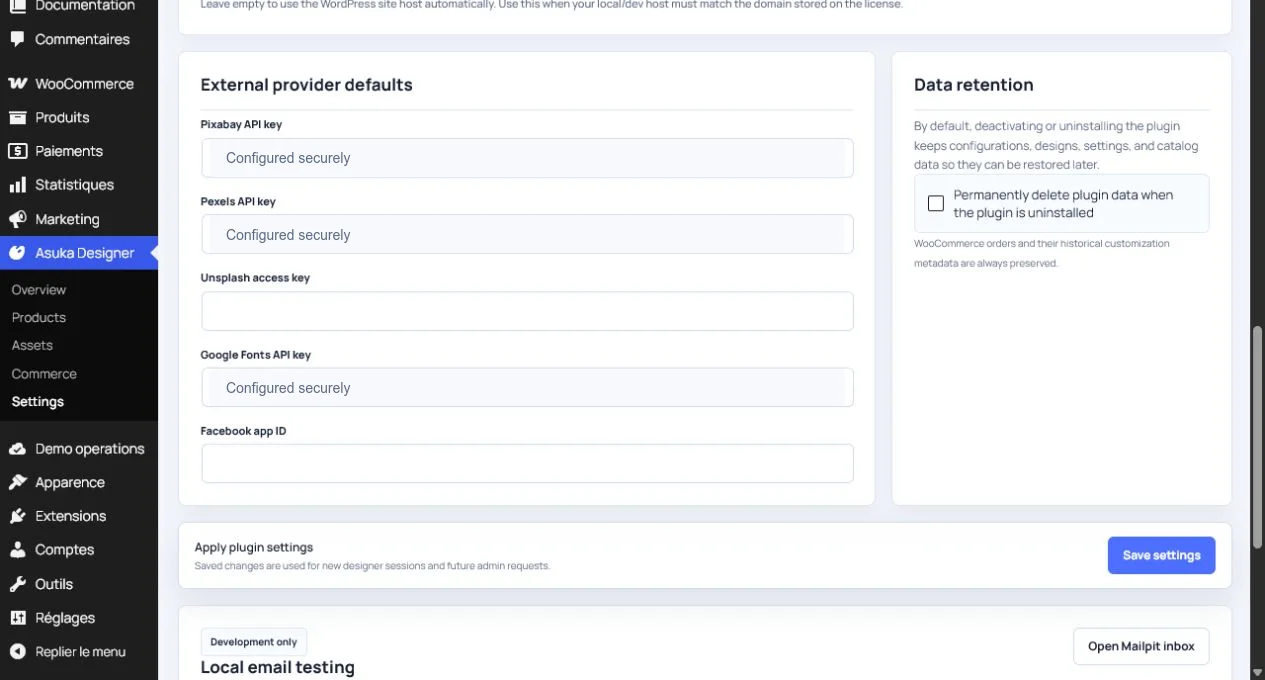
External providers such as Pixabay or Pexels appear only when enabled and configured in Settings.
Set the item active.
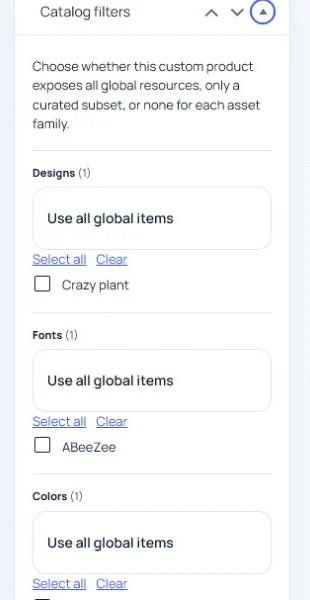
Configure product-level catalog filters.
Open the frontend module and verify search, categories, price, and preview.
Update shared content safely
A reusable asset can serve several products. Review affected products before replacing media, changing its ID, or removing it, then clear only the caches that depend on the catalog.