
Core and API
Variations, nested choices, and parameters
Create product options that target one 2D object, 3D mesh, material, texture, or measurable dimension.
Guide overview
Choose a stable target
A variation group belongs to a product element or detected 3D part. Use stable object IDs, mesh names, and material names so imported products and future model revisions keep the same target.
A 2D variation may replace the source image while preserving the object frame. A 3D variation may change color, texture, model, or a dynamic parameter.
Select the product part in the canvas.
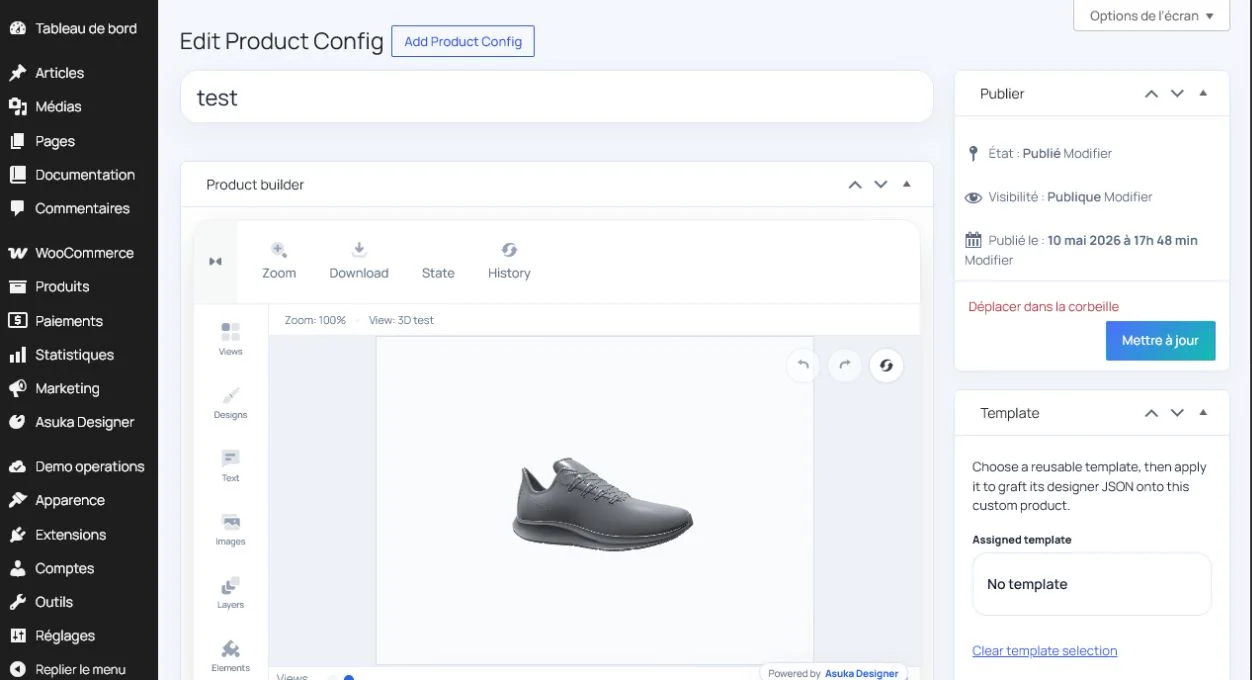
Open its variation editor.
Confirm the technical target and give the group a customer-friendly label.
Build readable nested choices
Use parent groups for product parts and nested choices for the available finishes. The storefront swatch uses the choice image first, then its color, then its texture, and finally a neutral placeholder.
Choices with the same intentional synchronization key can change together across views; ordinary repeated labels remain independent.
Create the default choice.
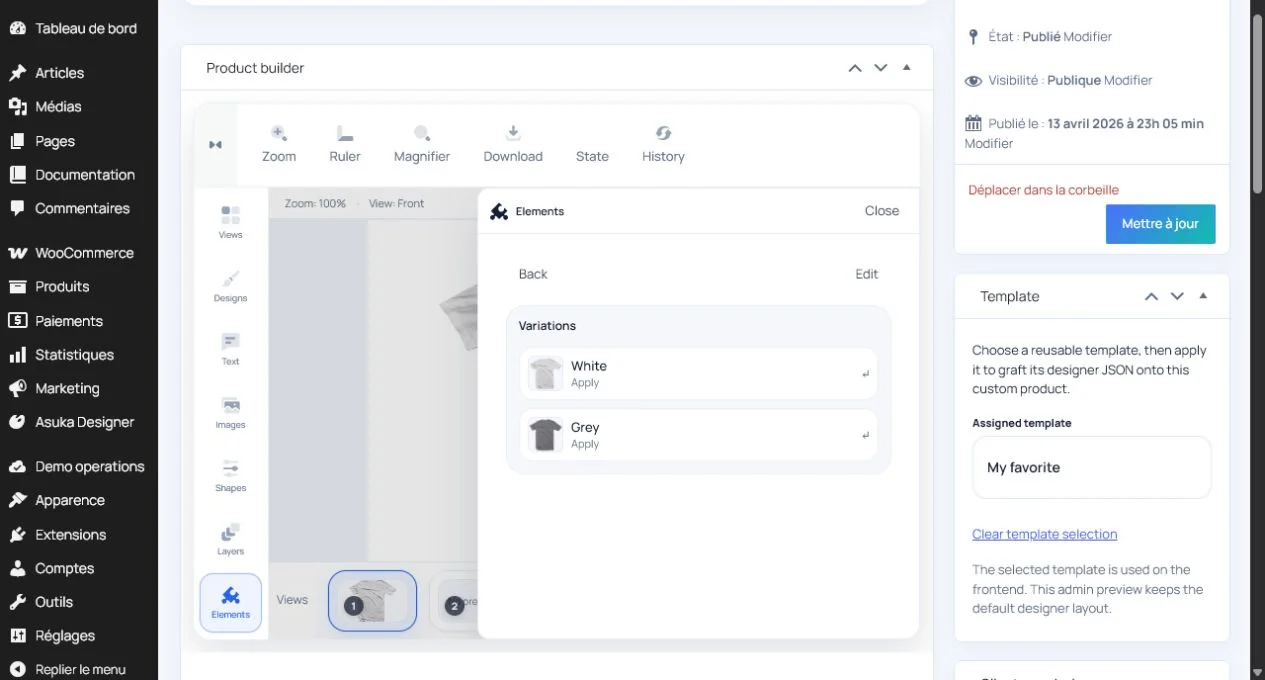
Add color, texture, and image-based choices.
Test every branch from the customer Variations panel.
Verify same-name synchronization only where configured.
Add physical parameters
Dynamic parameters expose width, height, depth, rotation, or another supported action with minimum, maximum, default, and step values. Display and edit them in the product unit system rather than mixing percentages and meters.
When several objects are related, enforce limits, snapping, collision policy, and dependent resizing before accepting the new value.
Choose the geometric action.
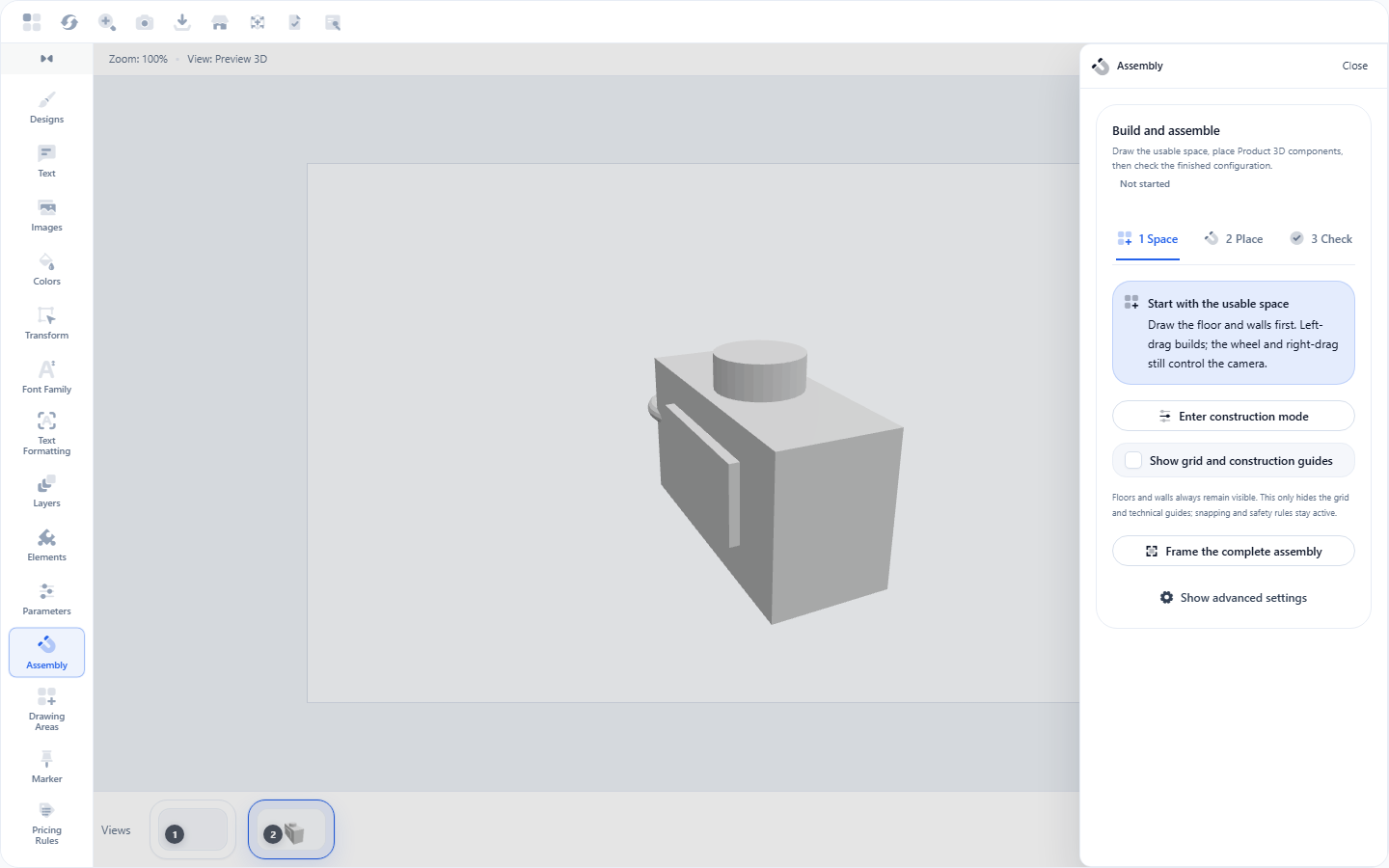
Enter limits and a customer-friendly unit.
Test minimum, maximum, history, and view persistence.