
WordPress and WooCommerce
Build and assign templates and themes
Control module placement, permissions, responsive behavior, and visual tokens independently for administrators and customers.
Guide overview
Before you start
- Required administration and customer actions are listed.
- The active plan exposes the intended modules.
- Desktop and mobile previews are available.
Expected result
Administrators receive the complete builder they need while customers see a focused, branded, mobile-safe interface.
Understand the two preset types
Templates define modules, zones, portals, menus, selection tools, labels, icons, pagination, permissions, and responsive behavior. Themes define colors, typography, surfaces, spacing, and component styling.
Changing a theme should not change permissions; changing a template should not silently rewrite product content.
Open Assets > Templates and Themes.
Duplicate an existing preset when appropriate.
Name it for its role and context.
Keep customer and administration presets separate.
Build with drag and drop
Move enabled modules between supported zones and order them according to the real workflow. Reordering is an administrative action and must remain available to authorized users in the template editor.
Keep primary customer actions close to the canvas and move infrequent settings into a drawer or portal.
Enable only required modules.
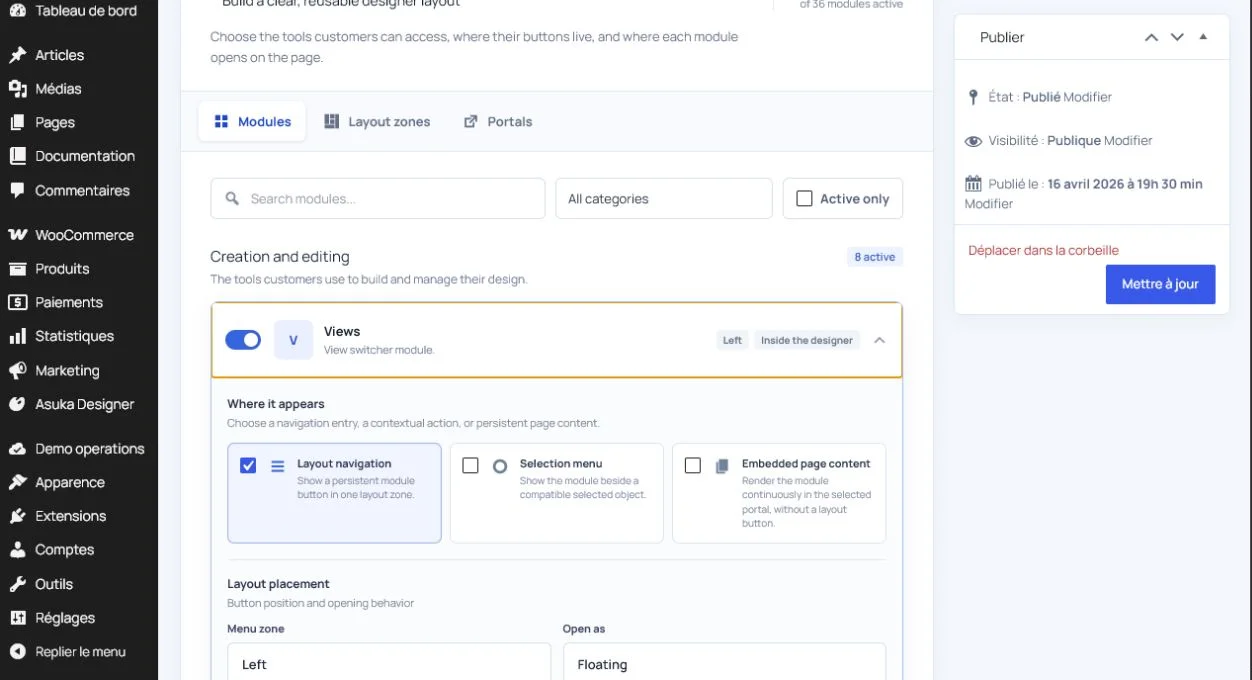
Drag them into target zones.
Configure labels and contextual actions.
Save the preset.
Assign defaults and product overrides
Settings selects separate administration and customer defaults. A custom product can override its customer template or theme without modifying the reusable preset itself.
Preview fullscreen, embedded, desktop, and mobile layouts before publishing.
Set administration defaults.
Set customer defaults.
Override one test product.
Verify changes propagate to products using the shared preset.