
WordPress and WooCommerce
Configure media providers and AI image generation
Connect Pixabay, Pexels, Google services, Replicate, or OpenAI through secure server-side settings and durable WordPress media.
Guide overview
Before you start
- Provider accounts and allowed use cases are understood.
- API credentials are available to an authorized administrator.
- WordPress can write to its uploads directory.
Expected result
Allowed media searches and generations return usable images, fail clearly, and never expose provider secrets to customers.
Enter credentials in Settings
Open Asuka Designer > Settings and configure only providers the store intends to expose. Keys are stored server-side and should never be pasted into a template, product state, browser script, or support screenshot.
Google API configuration may include a key and service-specific identifiers; follow the provider restrictions for allowed domains and APIs.
Open the provider settings.
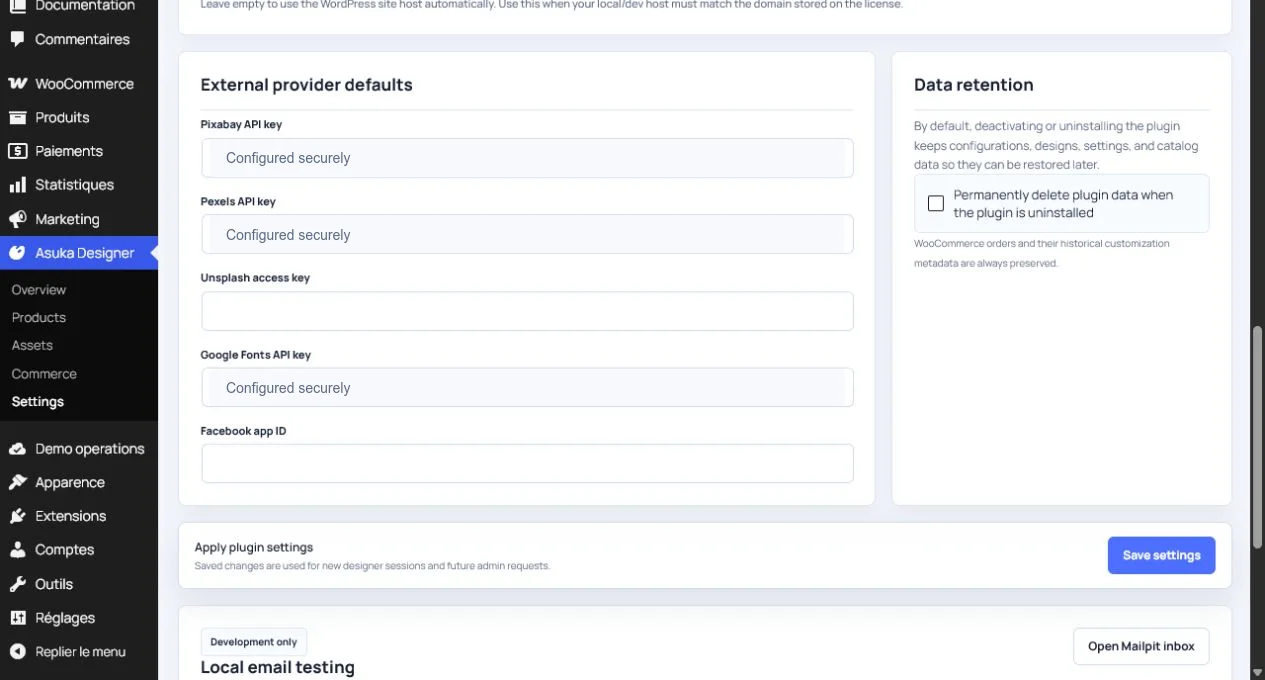
Enter and save one credential set.
Restrict the key at the provider.
Run the connection check when available.
Test search and generation
Open the Images module in an administration or customer template that permits the provider. Search or generate a small test image and wait for a completed response rather than treating a long-running request as an infinite spinner.
Timeouts, quota errors, content policy rejection, and invalid credentials must result in distinct messages and a usable Generate button.
Run one image search.
Run one AI generation.
Verify progress and timeout handling.
Retry after a controlled failure.
Persist outputs before canvas use
Temporary provider URLs may expire or reject cross-origin canvas export. The integration copies the selected output into managed media before Fabric loads it, then uses the durable URL in product state.
Confirm that Add places the image, reload keeps it visible, and production export succeeds.
Add the result to the canvas.
Check its WordPress media URL.
Reload the product.
Generate a preview and production output.