
WordPress and WooCommerce
Link a simple WooCommerce product
Connect one reusable custom product to a native WooCommerce product and verify the complete product-to-cart journey.
Guide overview
Before you start
- WooCommerce is active.
- A published custom product contains at least one valid view.
- The native WooCommerce product is published.
Expected result
The designer appears in the product media area, uses the native purchase form, and adds one correctly priced line to the cart.
Create the product link
Open the WooCommerce product and locate the Asuka Product Designer panel. Choose the reusable custom product and save the WooCommerce product; do not duplicate designer state inside the commerce record.
The link lets one custom product serve several catalog products while its shared configuration remains centrally managed.
Open Products and edit the native product.
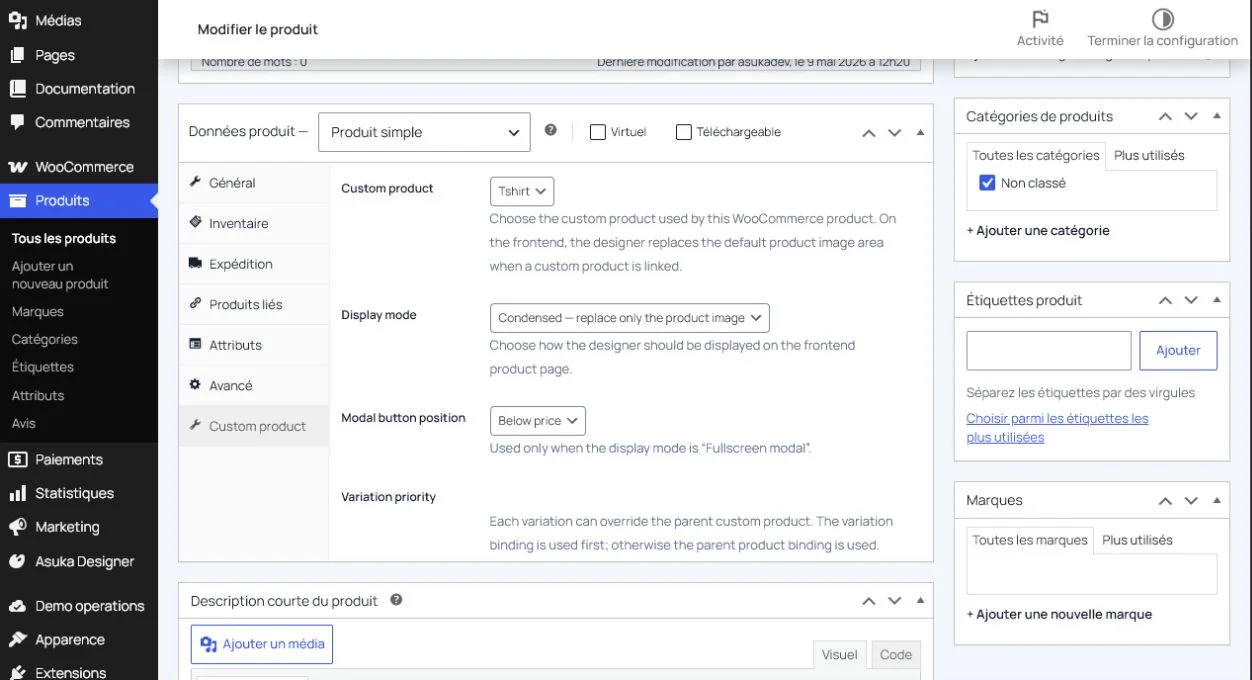
Choose the custom product in the Asuka panel.
Update the WooCommerce product.
Reopen the editor and verify the saved link.
Verify storefront placement
Open the product as a customer. The designer should replace or integrate with the configured product media area while WooCommerce remains responsible for quantity, stock, tax, and the single Add to cart action.
Check the active customer template, drawing areas, assets, and live price before adding a design.
Open the public product page.
Complete a visible customization.
Confirm the displayed total.
Use the native Add to cart button.
Test the cart edit round trip
The cart line stores a signed design reference, preview, readable choices, and validated surcharge. Edit customization restores the same design and updates that line rather than creating an accidental duplicate.
Repeat the flow as a guest if guest checkout is enabled.
Open the cart.
Check preview and option summary.
Edit the customization.
Save and confirm the same line is updated.