
WordPress and WooCommerce
Validate live pricing and cart editing
Keep the designer total, WooCommerce line price, cart preview, and edited design synchronized and server-validated.
Guide overview
Before you start
- Pricing rules are published if surcharges are used.
- The linked WooCommerce product has a base price.
- A full-page cart is available for testing.
Expected result
The same amount and design appear from product page through checkout, and editing updates the original cart line.
Build the displayed total
WooCommerce supplies currency, taxes, and base product price. Asuka pricing rules add allowed amounts for selected content, options, areas, or materials. The displayed total must make the base and customization contribution understandable.
Avoid using a design catalog price as a replacement for the WooCommerce base price unless that is the explicit rule.
Record the base price.
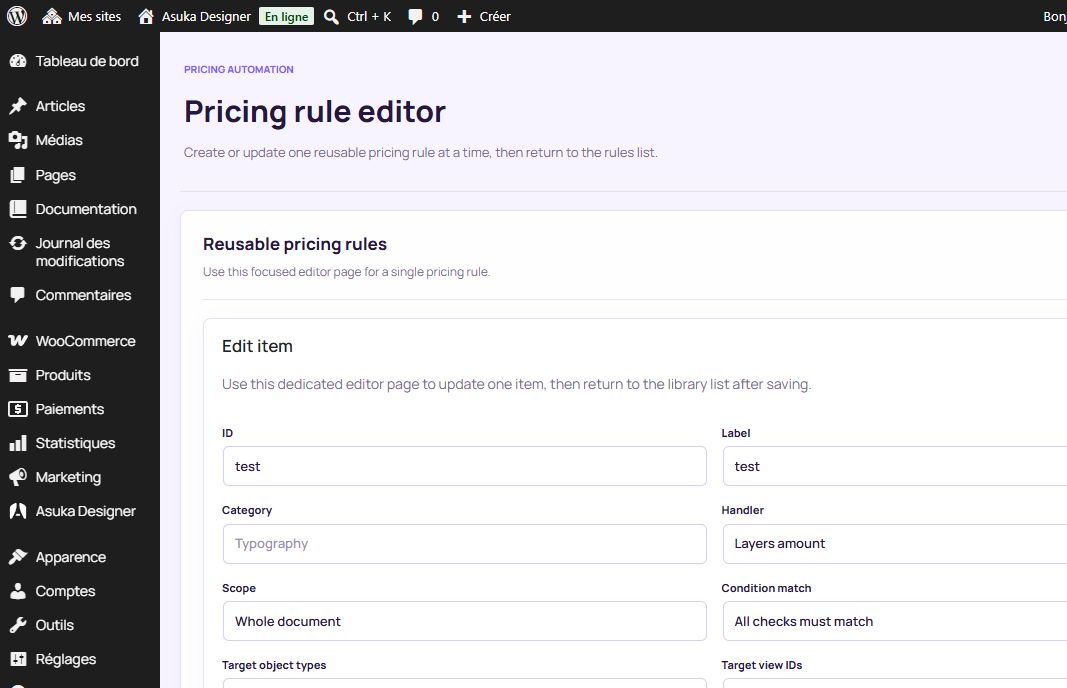
Trigger each surcharge separately.
Test combined rules.
Compare formatted totals.
Recalculate on the server
The browser preview is informative; the server validates the signed design reference and recalculates allowed charges before accepting the line. Never trust arbitrary hidden fields or a client-submitted total.
Rejected or expired design references should produce a clear cart message instead of silently adding an unpriced item.
Submit the configured product.
Inspect the accepted line price.
Try an expired or invalid reference in staging.
Confirm the server rejects tampering.
Edit without duplicating
Edit customization loads the stored state into the original product context. Saving replaces the design reference, preview, metadata, and price on that cart key.
Test cart page, mini-cart, coupons, quantity changes, and checkout because themes and extensions may render lines differently.
Open Edit customization.
Change one priced option.
Save back to the cart.
Confirm one line remains with the new total.