
Native Shopify app
Place a manual Asuka theme block
Add the designer to a chosen theme template and select an Asuka custom product directly in the block settings.
Guide overview
Before you start
- A Ready custom product exists.
- The active theme uses Online Store 2.0 sections.
- The merchant can edit the target template.
Expected result
The selected template renders the chosen custom product exactly where the app block was placed and saved.
Choose the target template
Open Online Store > Themes > Customize and select the product, home, page, or other JSON template that should contain the designer. Manual blocks are useful for explicit placement or a standalone showcase.
A manual block can select an Asuka custom product independently from the native Shopify product context.
Open the Theme Editor.
Choose the target template from the top selector.
Select the section that should contain the app.
Choose Add block or Add section.
Add and configure the app block
Choose Apps > Asuka Product Designer. In the block settings, use the Asuka custom product picker and select the Ready configuration; do not select a native Shopify product for this field.
Move the block using the theme’s section controls and remove options that do not apply to the chosen placement.
Add the Asuka app block.
Open its custom product picker.
Select the Asuka product.
Position the block.
Save and inspect the storefront
Click Shopify Save and open the actual storefront template. Theme preview alone can use design-mode placeholders while data is loading; the published page must render the full interactive designer.
Avoid placing a manual block and automatic embed for the same linked product in the same media area, which would intentionally create two instances.
Save the theme.
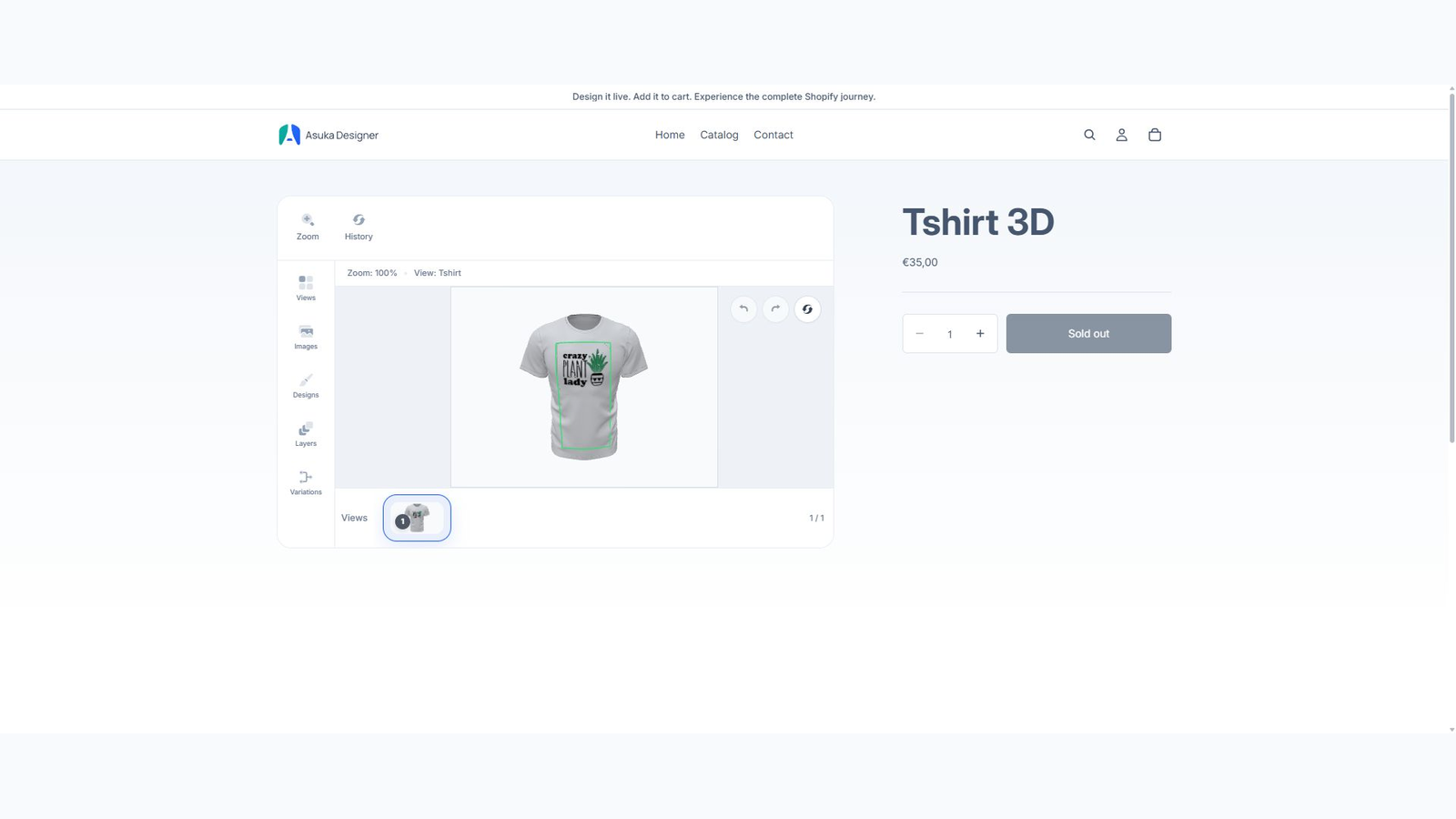
Open the public URL.
Test the designer and responsive height.
Confirm the placement does not duplicate automatic output.
Cart editing when the app embed is disabled
With the app embed enabled and saved, cart editing is automatic: skip this section. A manual designer block also supplies Edit customization in a cart drawer on the same page.
Only when the app embed is disabled and customers open a separate cart page, add Cart customizations to that cart template. This companion block provides the cart editing link; it does not add another designer.
If the cart template does not support app blocks, enable the app embed from Asuka Settings > Automatic storefront display and save the theme instead. Keep the original page containing the designer available so existing cart links can reopen it.
In Online Store > Themes > Customize, select Cart from the template selector.
In a compatible section, choose Add block > Apps > Cart customizations, or use Add section > Apps if the theme offers it there.
Click Save.
Add a customization, open the full cart page, and use Edit customization.
Save a change and confirm the cart item is updated without duplication.