Native Shopify app
Shopify variant mapping
Use one default custom product, override individual variants, or deliberately disable the designer for a variant.
Guide overview
Define the product-level default
Open the native Shopify product and its Asuka Product Designer admin block. Select the reusable custom product that should load when no variant-specific rule applies.
The selector lists saved custom products automatically; there is no separate Ready to link action once a product contains a configured view.
Open Shopify Admin > Products.
Open or add the Asuka Product Designer block.
Select the default custom product.
Save the Shopify product.
Override individual variants
Choose a Shopify variant and assign a different custom product, inherit the product default, or select No designer for this variant. Use overrides when model, drawing areas, allowed assets, template, theme, or pricing rules differ.
The storefront listens to the native variant change and loads the matching configuration without a full page reload.
Map each exceptional variant.
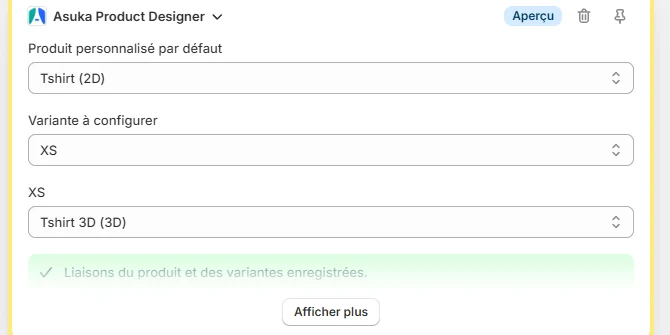
Save the block.
Test the native variant selector and direct variant URLs.
Confirm that in-progress work is restored only for the matching custom product.
Verify inherited product options
Each mapped custom product keeps its own views, variation choices, asset filters, template, theme, permissions, locale behavior, and attached pricing rules. Confirm these after every mapping change.