
Native Shopify app
Manage templates, themes, and shared assets
Create reusable interface presets and catalogs that appear consistently in the builder and storefront.
Guide overview
Before you start
- An app administrator can manage Assets.
- Customer and administration workflows are defined.
- At least one custom product exists for preview.
Expected result
The selected custom product receives exactly the published templates, themes, designs, colors, fonts, and provider content configured in Assets.
Use Assets as the shared catalog
Assets stores reusable designs, elements, fonts, colors, printing methods, materials, shapes, templates, and themes. Product option lists must come from this same published catalog rather than stale embedded defaults.
Use status, category, and storefront filters to control what customers see without deleting items still referenced by saved products.
Open each relevant asset library.
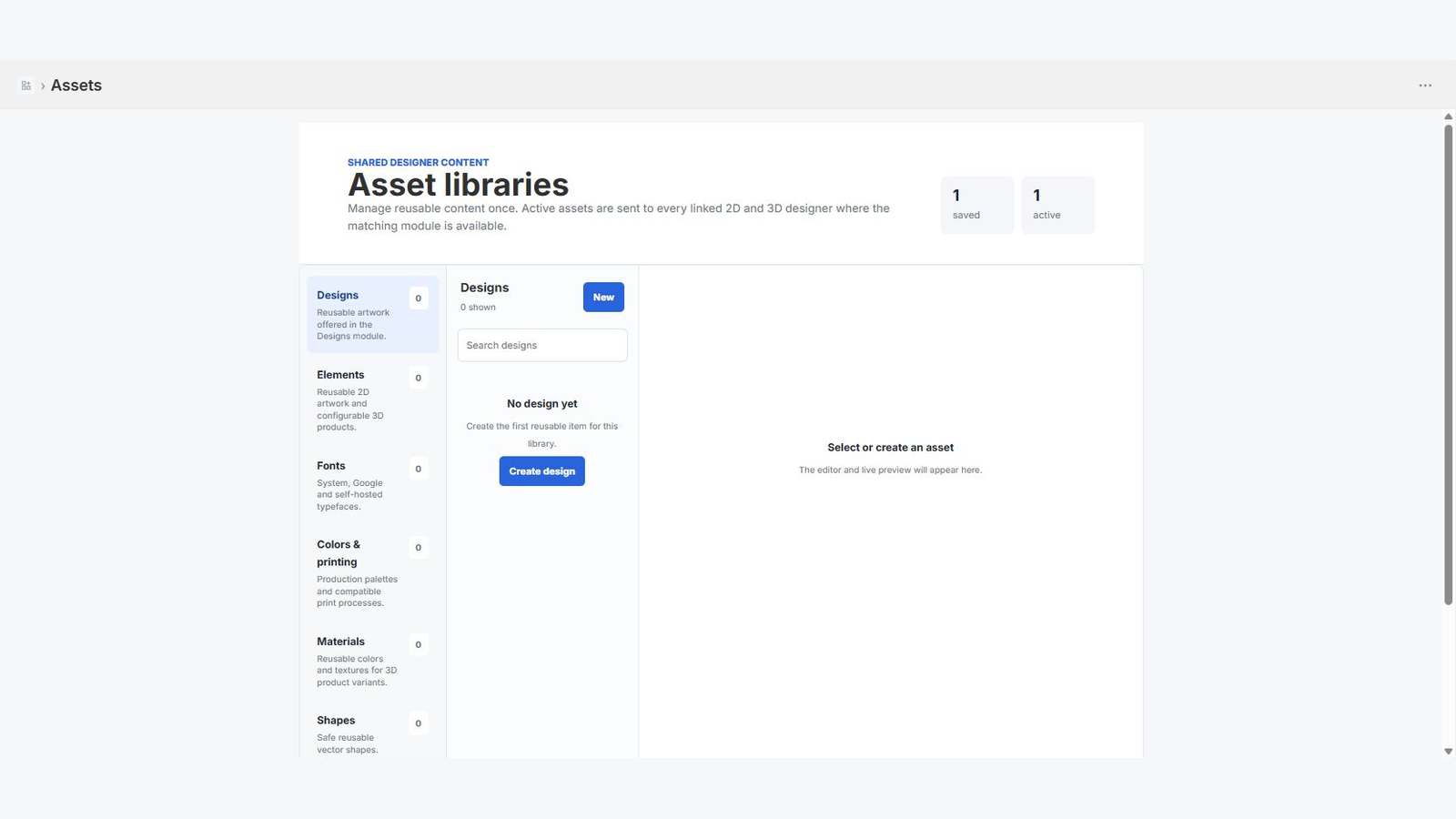
Publish a test item.
Set its category and storefront visibility.
Confirm it appears in the custom product options.
Build templates by role
Templates define modules, zones, contextual tools, menus, labels, icons, permissions, pagination, and responsive behavior. Authorized administrators can reorder modules with drag and drop.
Create separate presets for the embedded builder and customer storefront; development controls should never leak into the customer template.
Duplicate or create a template.
Place modules in workflow order.
Set permissions and labels.
Preview desktop and mobile.
Assign themes and product overrides
Themes control visual tokens without rewriting product state. Settings selects administration defaults; each custom product can choose its customer template and theme from the published Asset lists.
Edit a shared preset only when all assigned products should receive the change.
Publish the theme.
Choose defaults in Settings.
Assign a different preset to one test product.
Reload builder and storefront previews.