
Native Shopify app
Test plans, billing, changes, and reinstallation
Use Shopify’s hosted pricing flow for every subscription action and verify entitlements after approval, cancellation, or reinstall.
Guide overview
Before you start
- The app distribution has Shopify App Pricing configured.
- The store can approve test app charges.
- Plans are mapped to Asuka capabilities.
Expected result
Free, Starter, and Pro selections return to the app with the correct signed entitlement, and reinstall can request approval again when required.
Open the hosted plan selector
Choose Asuka Product Designer > Plans & billing, then View plans. Selection and charge approval occur on Shopify’s hosted App Pricing page; the app does not send Shopify merchants to Stripe or the Asuka checkout.
If Shopify returns a 404, the pricing configuration or app distribution linkage is incomplete and must be fixed before merchant release.
Open Plans & billing.
Choose View plans.
Select the intended published plan.
Accept or decline on Shopify.
Refresh and change plans
After returning, use Check now when an immediate entitlement refresh is needed. Upgrade, downgrade, and cancellation must update plan name, limits, enabled capabilities, and renewal state without requiring an Asuka license key.
Unknown pricing plan identifiers require a visible mapping error and operational alert, never a silent fallback to the wrong paid plan.
Confirm the current plan.
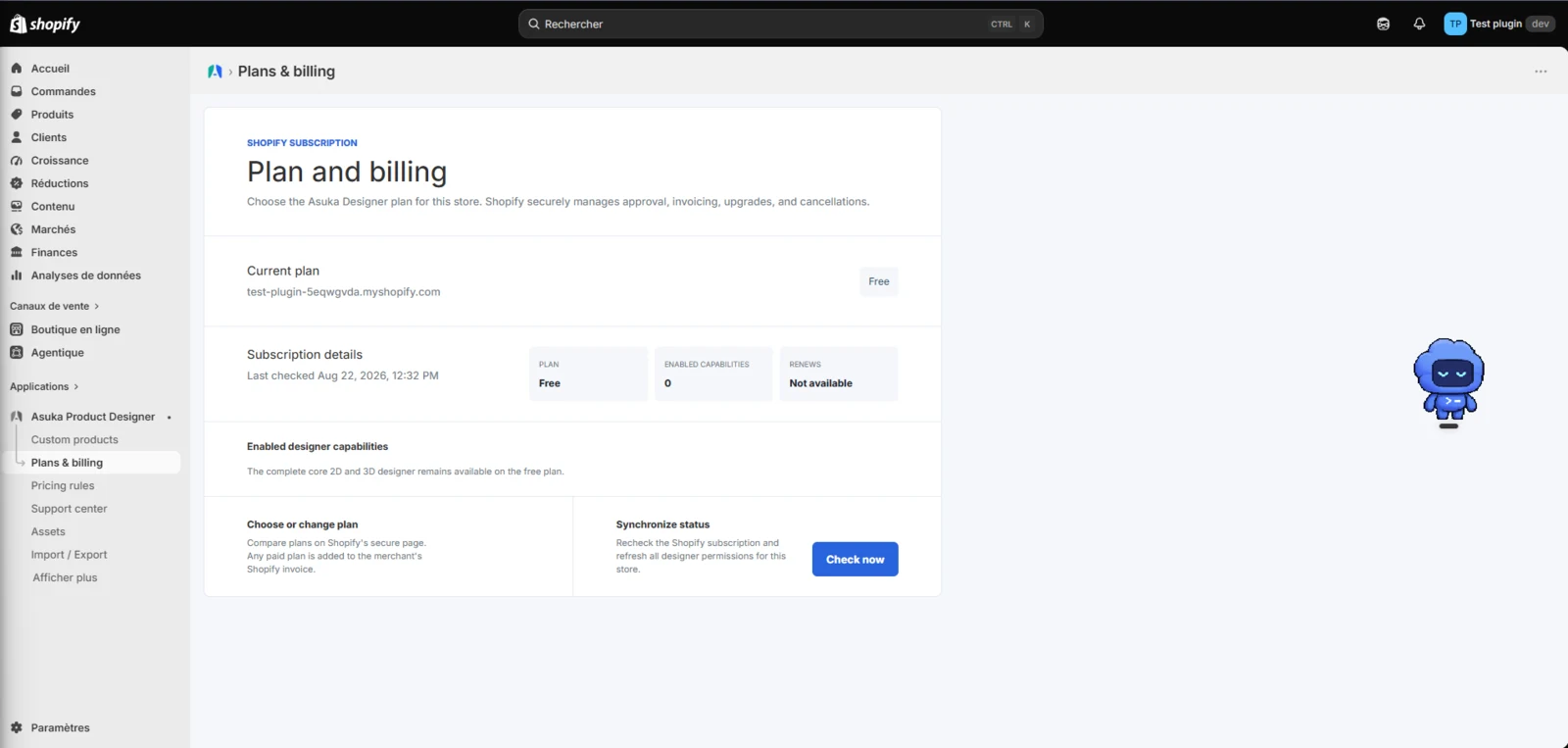
Change to another plan.
Refresh the status.
Compare visible modules and limits.
Check when a plan change takes effect
Shopify can schedule a downgrade for the end of the current paid period, particularly when changing from an annual plan. Plans & billing shows the scheduled plan and effective date while the current plan stays available until Shopify confirms the change.
Check now refreshes the Shopify status; it does not bring a scheduled change forward. Review both the current plan and renewal information before requesting another change.
Approve the change on Shopify.
Return to Plans & billing.
Check the current plan, scheduled plan, and effective date.
Use Check now to refresh the status when needed.
Verify reinstall behavior
Use a development store for this test. Uninstalling temporarily removes access to the app. On reinstall, approve its permissions, reopen Plans & billing, and check the subscription returned by Shopify.
Shopify may retain access to a previously paid period after reinstall. In that case, the app shows the retained plan with renewal cancelled; this does not approve a new charge. Select View plans and complete Shopify approval to start or renew a paid subscription.
The Free plan remains available without an Asuka license key. A development-store approval must explicitly state that it is free before you use it for a no-charge test.
Record the current subscription and export any configuration you need to keep.
Uninstall from the development store.
Reinstall and approve the requested permissions.
Open Plans & billing and check the plan and renewal state.
Use View plans if a new subscription is needed, approve it on Shopify, and verify the status after returning.