
Native Shopify app
Link a custom product to a Shopify product
Use the native product admin block to connect one reusable Asuka configuration to the product customers purchase.
Guide overview
Before you start
- A custom product is Ready.
- A native Shopify product exists and is published.
- The Asuka admin block can be added to product details.
Expected result
The Shopify product stores the correct default Asuka link and automatically loads that designer on its storefront page.
Add the product admin block
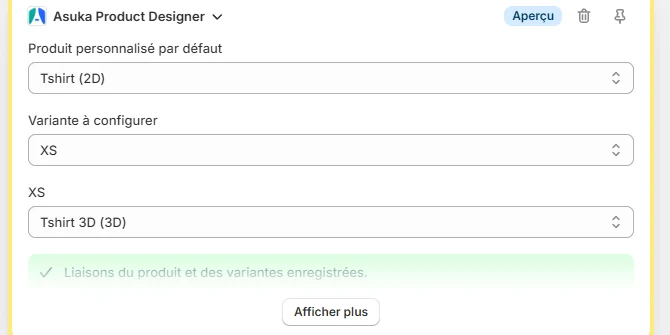
Open the native Shopify product. In the product details block area, add Asuka Product Designer if it is not already present. This is a Shopify admin block, not the storefront theme block.
The block gives the app a supported place to save product and variant links without replacing native product fields.
Open Shopify Admin > Products.
Choose the native product.
Add the Asuka Product Designer block.
Keep the block visible while configuring.
Select the reusable custom product
Use the custom product picker in the block and choose the Ready configuration. The picker lists Asuka custom products, not Shopify catalog products.
Save the native Shopify product after selecting the default. The custom product remains centrally editable in the app.
Open the custom product picker.
Search by the Asuka product name.
Select the result.
Save the Shopify product.
Verify the link
Reopen the product and confirm the picker still shows the selected name. Then open the Online Store product page and verify that automatic placement loads the matching designer.
If native media remains, check the app embed, published theme, product availability, and explicit no-designer variant mapping.
Reopen the admin product.
Open the public product page.
Confirm the expected view and options.
Complete a test customization.